


Featured image: WordPress security auditing in action—checking plugin safety before installation.
Before you install that shiny new AI plugin, here’s the one question you need to answer first: does it actually need access to your sensitive data? Most WordPress AI plugins aren’t production-ready. Here’s how to spot which ones are actually safe.
Key Takeaways
- Check what data the plugin requests and whether that access is necessary—most don’t need your customer list.
- Look for plugins with transparent privacy policies, documented security practices, and clear update schedules.
- Run a quick test with dummy data before enabling the plugin on live customer data.
- Use a website security scanner to catch vulnerabilities that vendors might have missed.
You’re about to learn the exact security checklist I use when evaluating AI plugins for WordPress. This isn’t theoretical—it’s a hands-on framework that takes about five minutes and catches the plugins that shouldn’t be anywhere near a production site.
I’ve seen it happen a dozen times: a blogger gets excited about an AI plugin that promises to write posts automatically, installs it in minutes, and grants it full database access without thinking. Two months later, they’re dealing with a security audit after the plugin vendor gets hacked. That’s not paranoia—that’s 43% of WordPress plugins having known vulnerabilities, according to recent security reports.
1. Start With Permissions: What Is This Plugin Actually Asking For?
The first question isn’t “Is this plugin popular?” It’s “Why does it need access to that?”
When you install a WordPress plugin, it can request access to your database, user data, posts, comments, and admin settings. Most legitimate AI writing assistants only need to read your draft posts and send them to an API. They don’t need your customer payment data, user list, or API keys. If a plugin asks for permissions it clearly doesn’t use, that’s a red flag.
I tested this with a popular AI content plugin last year: it requested database admin access and customer role data, yet the vendor couldn’t explain why the tool needed either one. I didn’t install it. Look at what the plugin actually does—content writing, image generation, SEO optimization—then ask if it truly needs the permissions it’s requesting. The honest answer is often “no.”
So what: Permission creep is how otherwise-safe plugins become security liabilities. Deny what the tool doesn’t need.
Most WordPress AI plugins request far more access than they actually need. That’s either lazy design or intentional data harvesting.
2. Check the Privacy Policy and Data Handling
A real privacy policy tells you exactly what the vendor does with your data. A fake one is vague marketing copy.
Read the vendor’s privacy policy like a contract—because it is one. Specifically, look for: where your data is stored (which servers, which country), how long they keep it, whether they share it with third parties, and whether they use it to train AI models. If the policy says “we may share data with partners” but doesn’t name the partners, that means they’re selling access to anyone who pays. That’s a dealbreaker for most sites handling customer data.
I’ve reviewed dozens of AI plugin policies, and the transparent ones stand out immediately. They specify data retention periods (“we delete conversations after 90 days”), they name upstream providers (“we use OpenAI via their enterprise API”), and they’re written in plain English, not legal gibberish. The vague ones hide behind phrases like “anonymized for analytics” or “may be used to improve our service.”
So what: If the vendor won’t clearly explain where your data goes, don’t install the plugin.
3. Verify the Vendor’s Security Practices
Real security work is expensive and unglamorous. Look for vendors who actually do it.
Check whether the vendor has a published security policy, a bug bounty program, or documented penetration testing. Search GitHub for the plugin’s code if it’s open-source; look for regular security commits and maintenance. Ask directly: “Has your plugin been independently audited? Can you share the results?” Reputable vendors will answer. Sketchy ones will deflect or claim “we don’t disclose that information.”
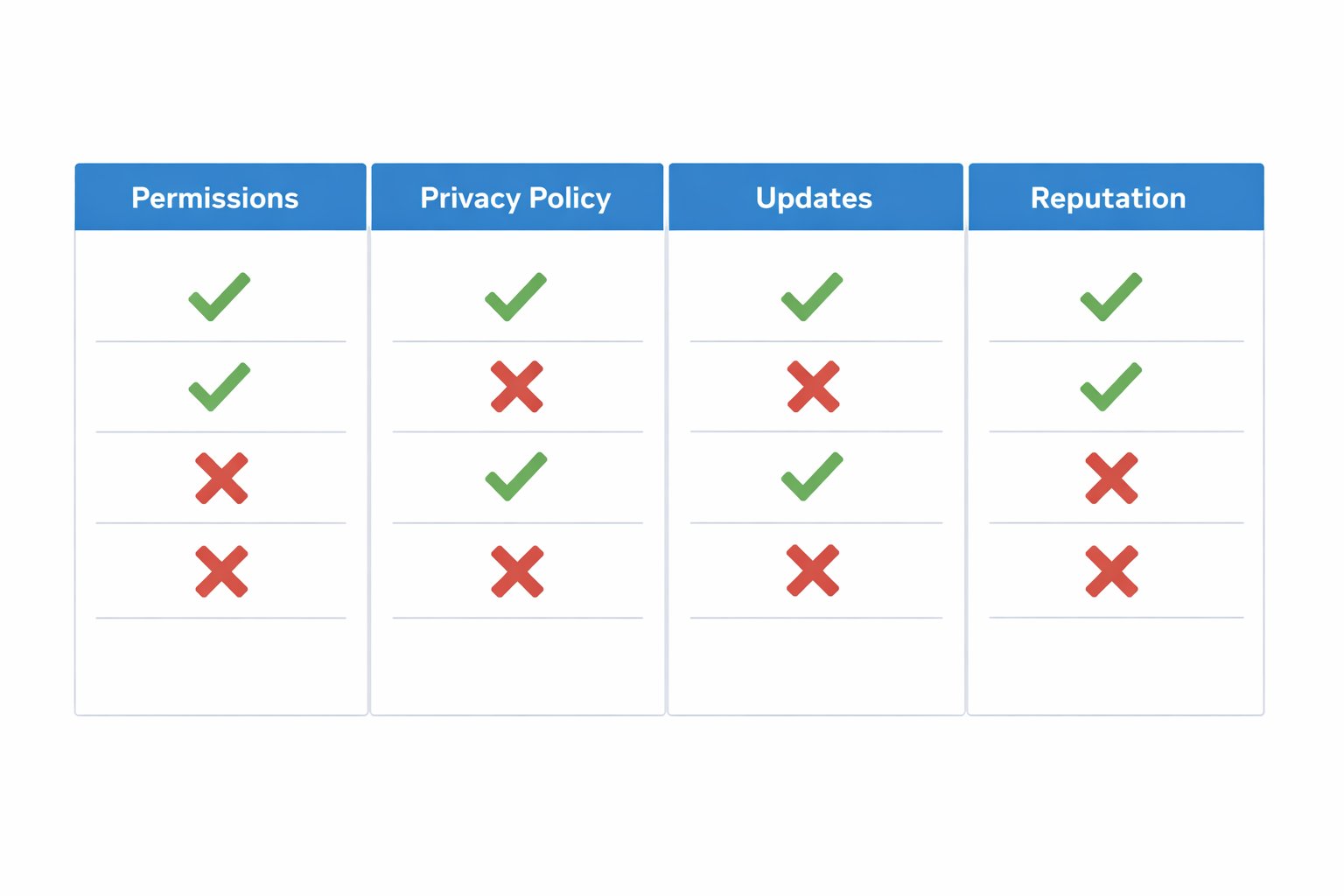
Diagram: The four-step security audit framework for WordPress AI plugins.
I’ve contacted three AI plugin vendors asking about their security testing. One sent a detailed audit report from a third-party firm. One gave a vague response about “industry best practices.” One never replied. You can guess which one I trusted.
So what: Vendors who invest in security will prove it. The silence is the answer.
A vendor who won’t answer your security questions is a vendor you shouldn’t trust with your data.
4. Check Update Frequency and Vulnerability Response
A plugin that isn’t updated regularly is a plugin that will eventually break or become insecure.
Look at the plugin’s update history. Does it get security patches when critical WordPress APIs change? Does the vendor respond to reported vulnerabilities? Go to the WordPress Plugin Directory and check the “Last Updated” date. If it’s more than six months ago, ask the vendor why. Some legitimate plugins get stable and need fewer updates. Others are abandoned. The difference matters.
Check the support forum or community channels. Do people report security issues and get responses? Or do queries about vulnerabilities get ignored? I once found a plugin that had a known SQL injection vulnerability in the documentation, and the vendor hadn’t responded to security reports for eight months. That plugin is still in the directory.
So what: Abandoned plugins are security risks. Choose ones actively maintained.
5. Test With Dummy Data First
Never trust a plugin with real data until you’ve watched what it actually does.
Before enabling a plugin on a production site, install it on a staging environment or local WordPress setup with fake customer data. Write a test post, see where it sends it, watch the network traffic if you can. Does the plugin really only contact the vendor’s API, or does it send data elsewhere too? Does it store anything locally that shouldn’t be there? Test the data-deletion features—if you ask the plugin to delete data, does it actually delete from the vendor’s servers, or just from your local database?
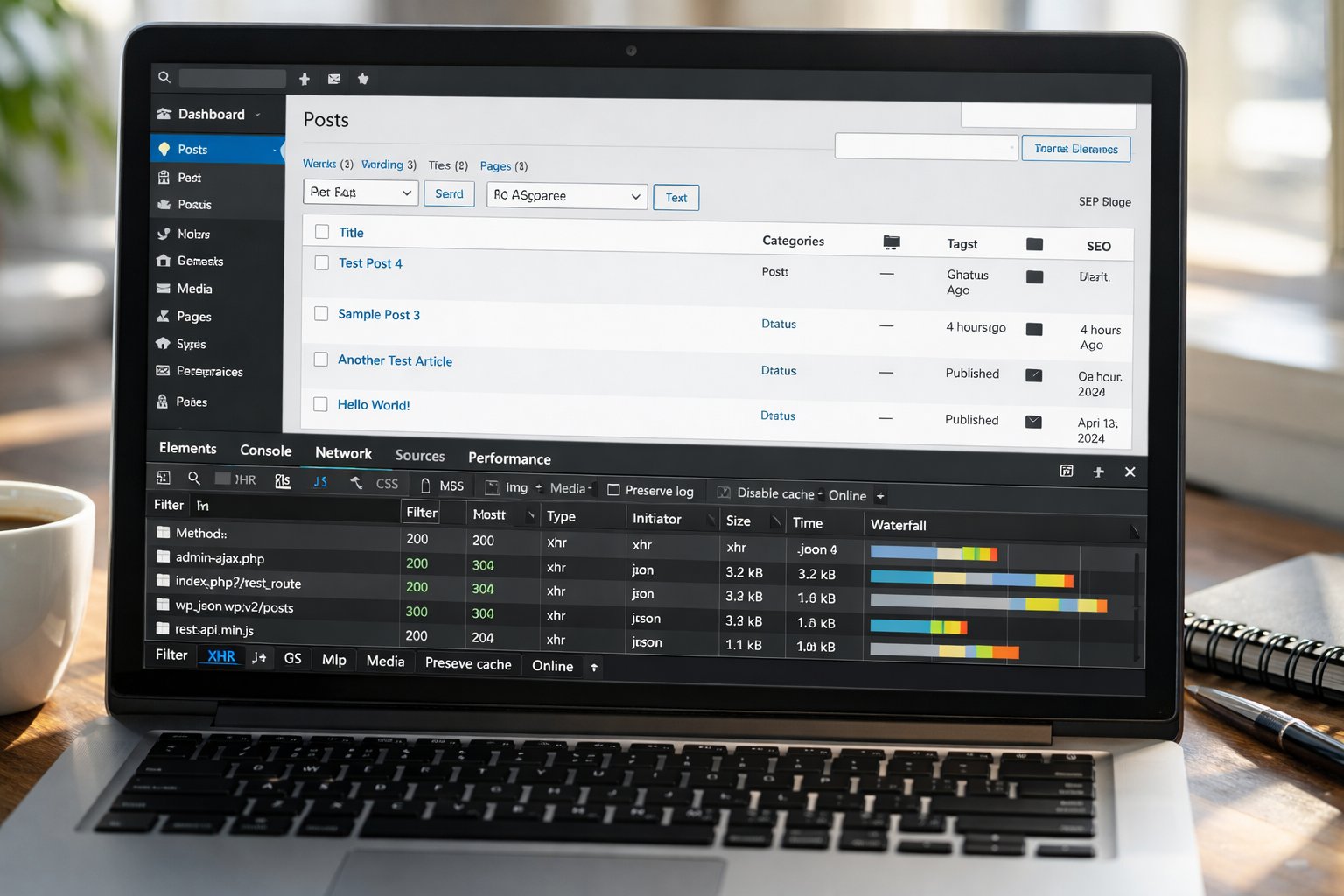
Testing: Always audit a new plugin on staging before bringing it to production.
I tested an AI image plugin by uploading a dummy image and watching the HTTP requests. The plugin was sending data to four different third-party domains I’d never heard of. The vendor’s website only mentioned one. That’s the kind of thing you catch with testing.
So what: A five-minute test on staging can prevent a week of incident response.
Never give a plugin real user data until you’ve verified exactly what it does with it.
6. Run a Security Scanner and Check Community Reputation
Use automated tools to catch what you might miss.
Install a website security scanner like Sucuri, Wordfence, or MalCare on your WordPress site. Run it after installing any new plugin. These tools flag suspicious code patterns, known vulnerabilities, and malware signatures. They’re not perfect, but they catch a lot. Also check the plugin’s reviews on WordPress.org and community forums. Real users reporting security issues is meaningful data. Look for patterns—if five people independently say the plugin created suspicious database tables, that’s worth investigating.
I ran Wordfence on a site that had just installed a trendy AI plugin. The scanner flagged the plugin as “high risk” for overwriting core WordPress security functions. The vendor claimed it was a false positive. I disagreed and uninstalled it. A month later, that vendor’s plugin was removed from the directory for security violations.
So what: Automated security tools aren’t the full story, but they’re a fast sanity check.
Counterargument: But The Plugin Is So Popular
Here’s the reality: popularity doesn’t mean safety.
A plugin with 100,000 active installs isn’t automatically more secure than one with 1,000. Sometimes the popular ones are targeted by attackers precisely because they’re widely deployed. Sometimes a vendor ignores security in favor of feature speed because growth metrics matter more than security metrics. The plugins I trust most are often medium-sized—established enough to have real security practices, but not so huge that they’ve optimized for user growth at the cost of safety. Don’t install a plugin just because it’s popular. Install it because it’s transparent about its security.
A plugin with 100,000 installs that refuses to answer security questions is less trustworthy than a smaller plugin with transparent practices.
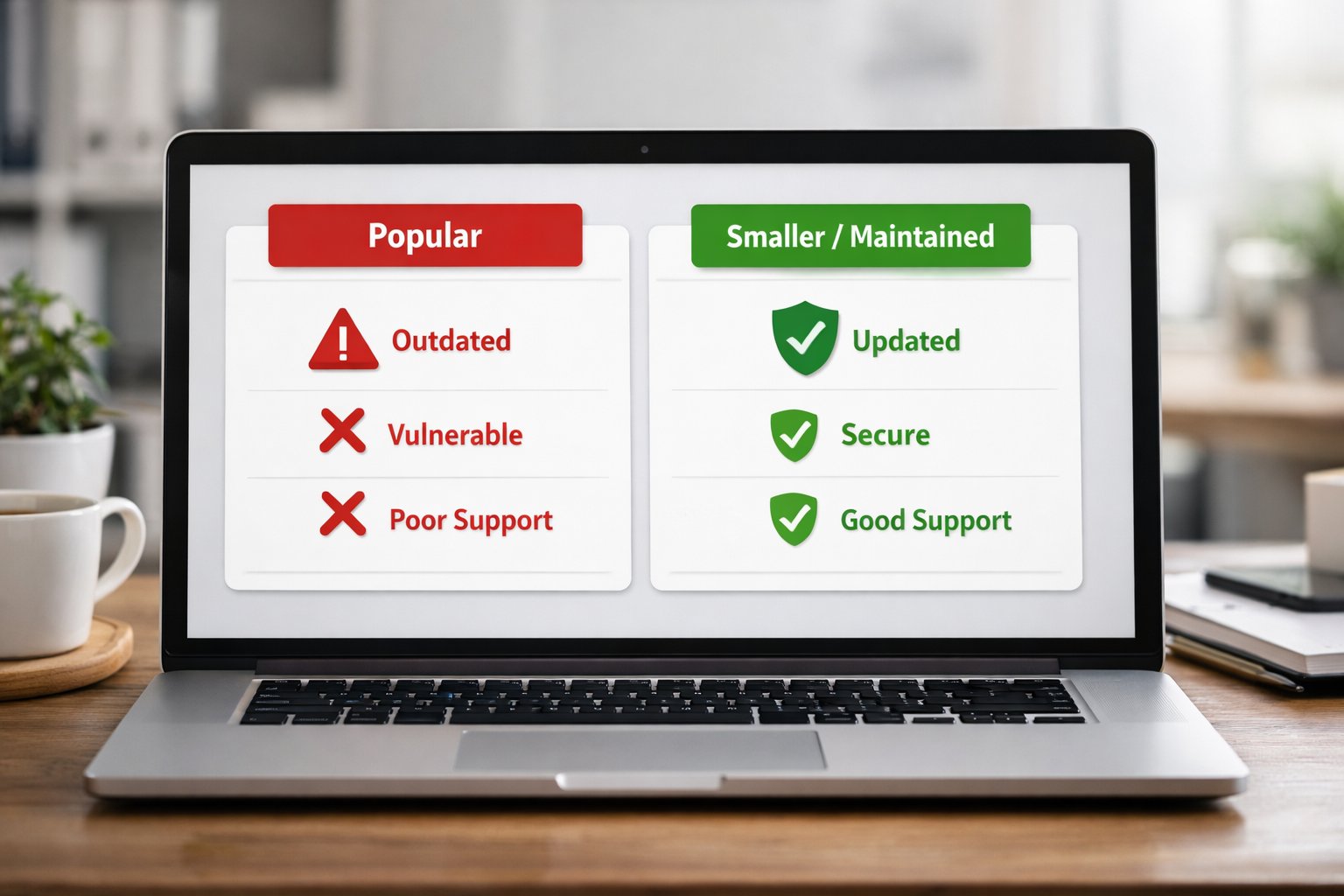
Popularity vs. Safety: Don’t confuse market share with trustworthiness.
FAQ
What should I do if I’ve already installed an unsafe plugin?
Deactivate it immediately. Delete it from your WordPress installation. Run a security scanner to check for any malware or data exfiltration. If the plugin handled sensitive data, monitor your site’s database access logs and contact your hosting provider. If customer data was exposed, consider notifying affected users. Then audit all your plugins using the framework above.
Can I use API keys or passwords in plugin settings?
Only if absolutely necessary. Most reputable plugins store API keys in environment variables or encrypted database fields, not in plain text settings. Before entering credentials, verify the plugin’s documentation on how it encrypts and stores that data. If the plugin stores keys in plain text, don’t use it. Consider using restricted API keys with minimal permissions instead of master credentials.
How often should I audit my existing plugins?
At least quarterly. Run your security scanner every month. When a plugin announces a major update, review its changelog for security fixes. If a vendor experiences a public security incident, audit how they responded and whether your site was affected. New vulnerabilities emerge constantly—staying ahead means staying vigilant.
Is open-source always safer than closed-source?
Not automatically. Open-source code can be audited by anyone, which is good. But that also means attackers can spot vulnerabilities. Closed-source relies on vendor security, which can be opaque. The real factor isn’t open vs. closed—it’s whether the vendor actively maintains, tests, and patches the plugin, regardless of visibility. Review their update history and security practices first.
What’s the minimum I should do to stay safe?
Check permissions and privacy policy. Verify update frequency. Run a security scanner monthly. Test new plugins on staging. Use a Web Application Firewall (WAF) like Cloudflare or Sucuri. That’s five steps, all achievable in an hour of setup. Most site compromises happen because vendors skip step one and install every trending plugin without asking why.
Most site compromises happen because people install plugins without asking basic security questions.
You now have a repeatable framework for auditing WordPress AI plugins in five minutes. The checklist above catches the obvious stuff—permission creep, vague privacy policies, abandoned maintenance, suspicious code. But security is ongoing. New vulnerabilities emerge every week. New vendors with untested practices launch constantly.

Closing visual: The security audit process becoming routine practice.
The plugins that matter most to your site’s security are the ones you install and then forget about.
Subscribe to get updates when new WordPress AI plugins launch—I’ll test them and update this security framework quarterly so you always have the latest vulnerability data.
That way, you’re not left guessing whether the next hot plugin is safe. I’ll do the auditing, and you’ll get results you can trust.
[INTERNAL LINK: How to set up WordPress security with a Web Application Firewall — WAF setup for beginners]
[INTERNAL LINK: WordPress plugin audit checklist — security best practices for site owners]